How to record your screen in the browser
Record a tab, a window or your whole screen right from your Tutorials page, with nothing to install.
Step by step
8 steps to record your screen in the browser.
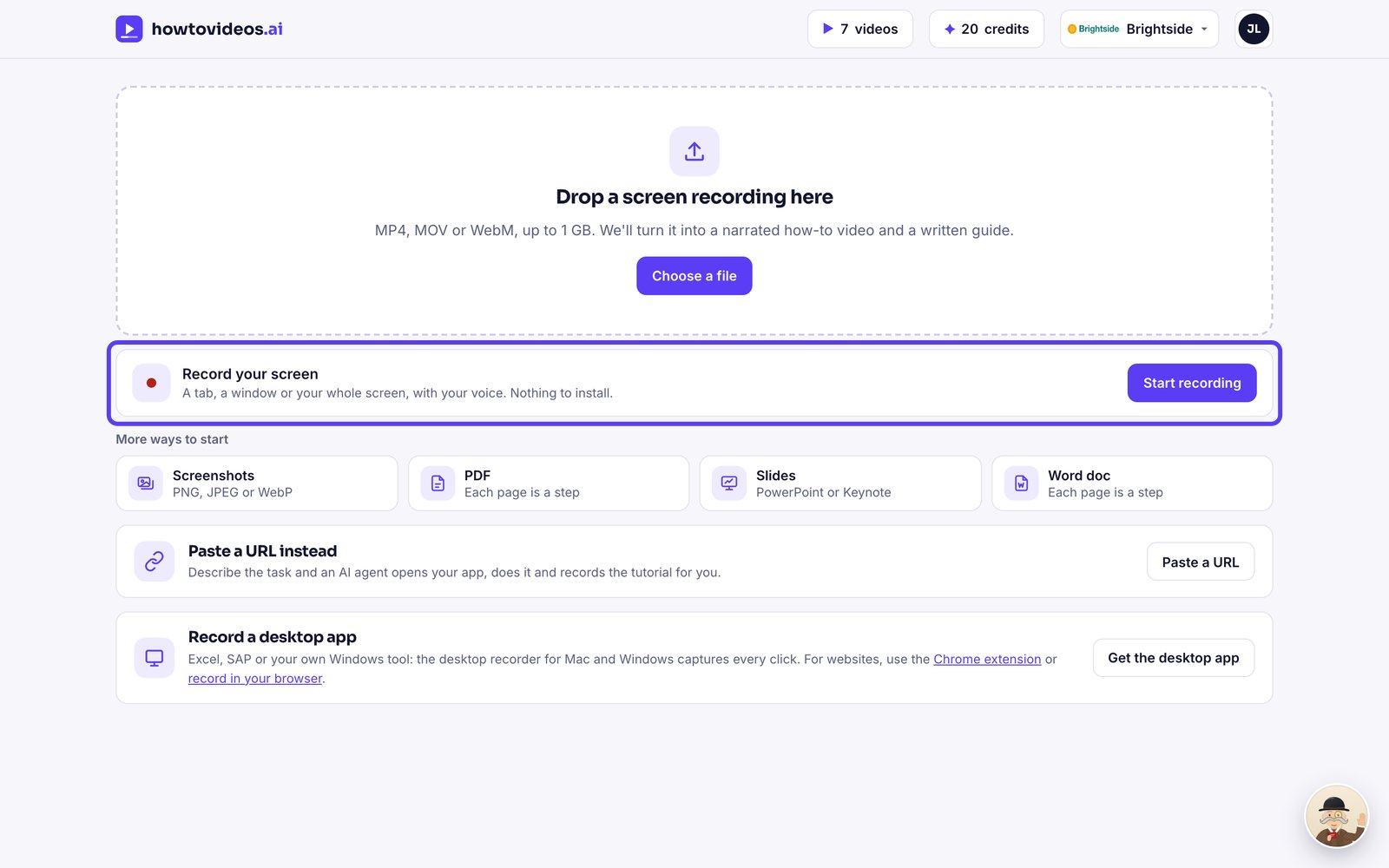
Choose Record your screen
On your Tutorials page, choose Record your screen. It works in Chrome, Edge, Firefox and Safari on a computer, with nothing to install.
Set it up
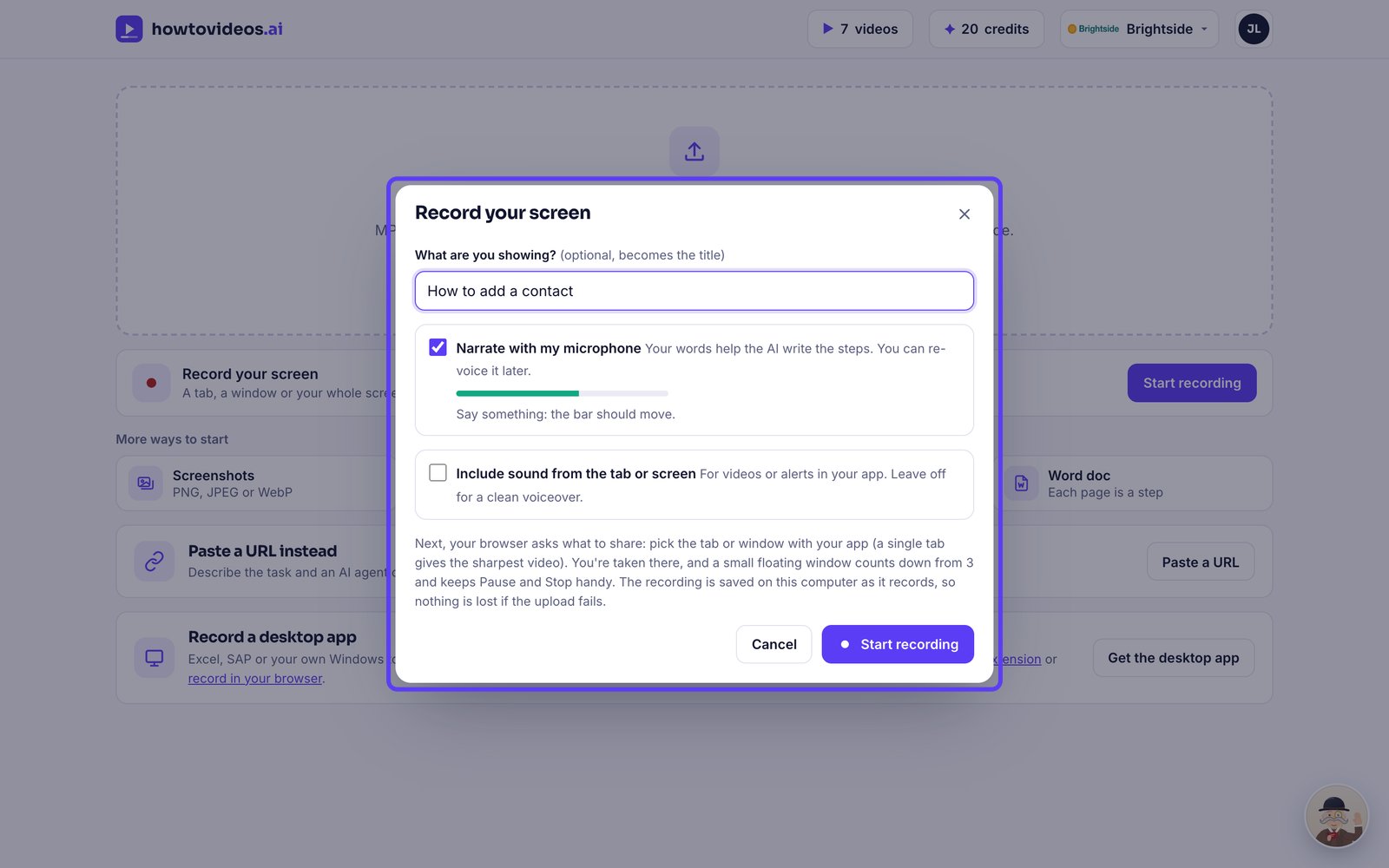
Type what you're showing: it becomes the title. Keep Narrate with my microphone ticked to talk it through, and check the bar moves when you speak.
Pick what to share
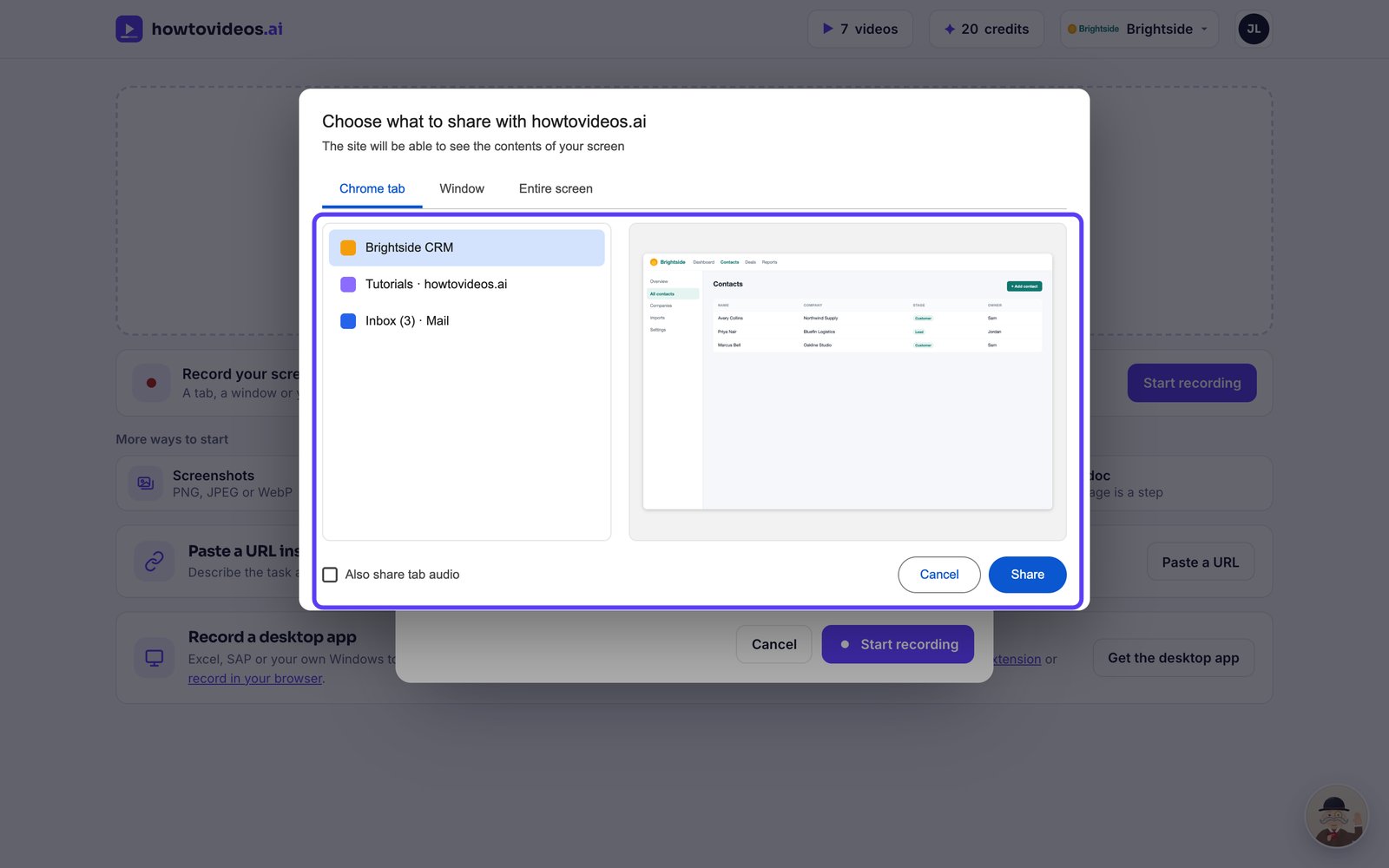
Choose Start recording. Your browser asks what to share: pick the tab with your app and choose Share. A single tab gives the sharpest video.
Go through the task
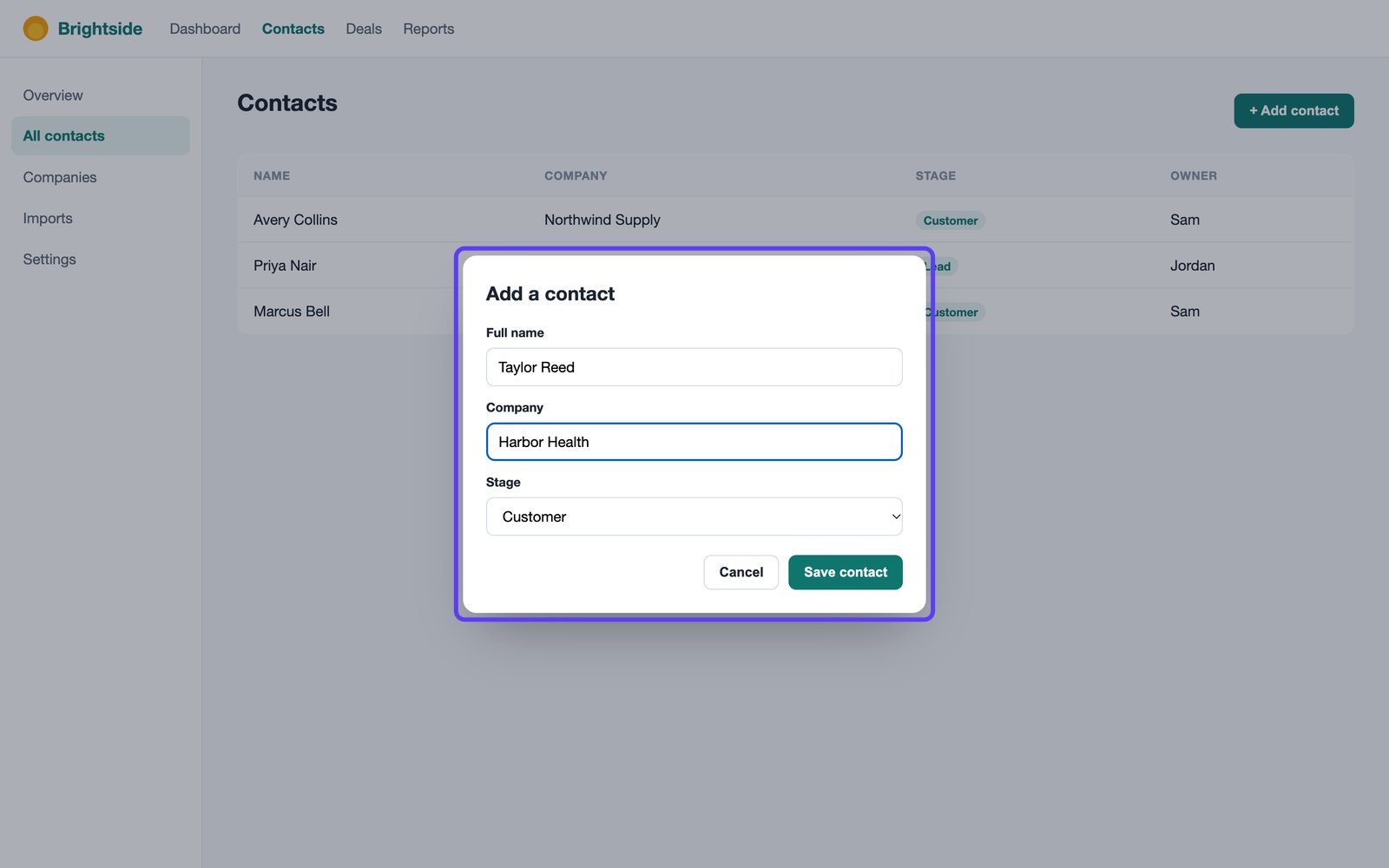
After a three-second countdown, switch to that tab and do the task at a normal pace, saying what you're doing as you go.
Stop when you're done
Choose Stop in the floating window or at the bottom of your Tutorials page, or use your browser's Stop sharing button.
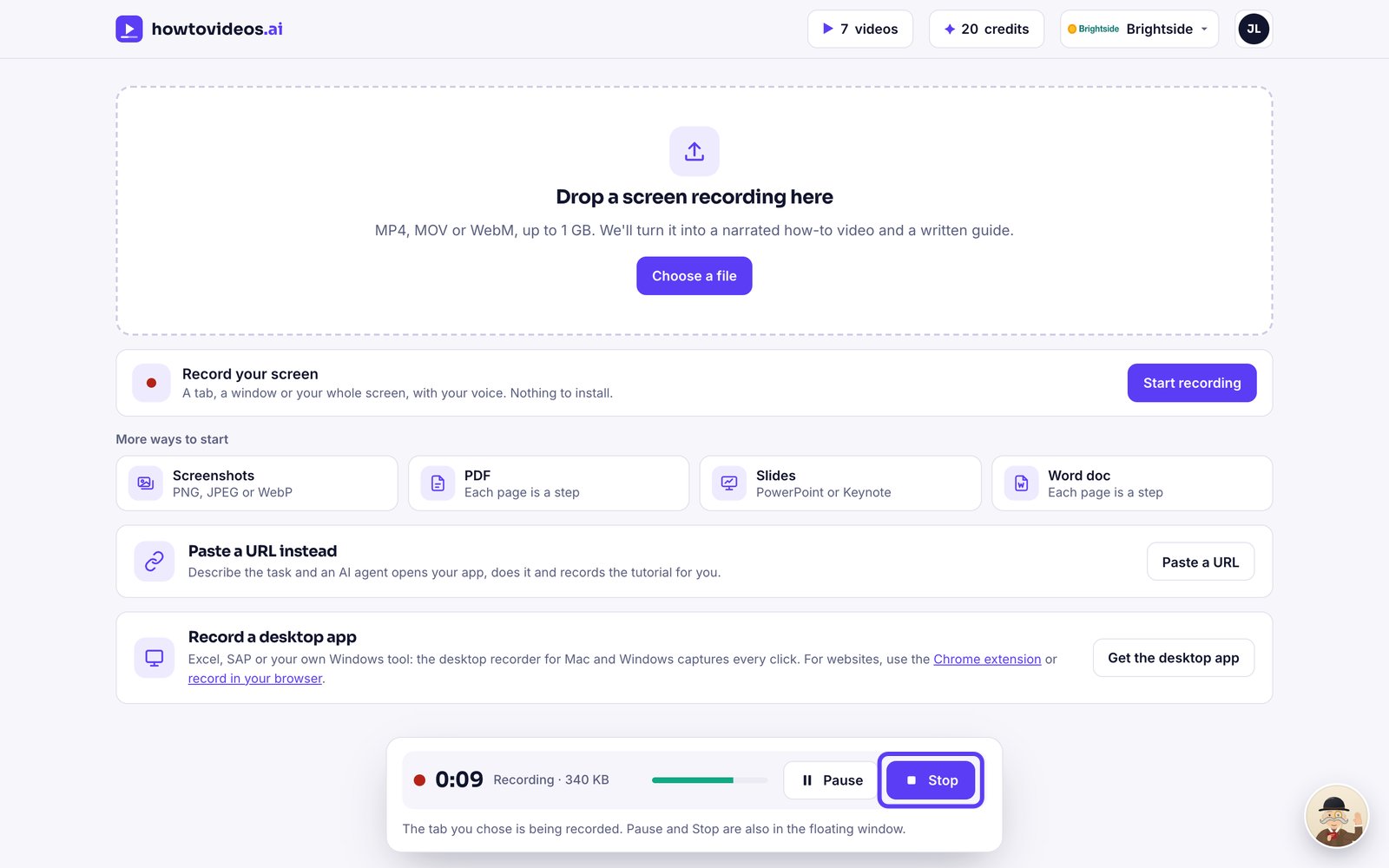
Make the tutorial
Watch it back, then choose Make tutorial. It's saved on your computer as it records, so nothing is lost if the upload fails.
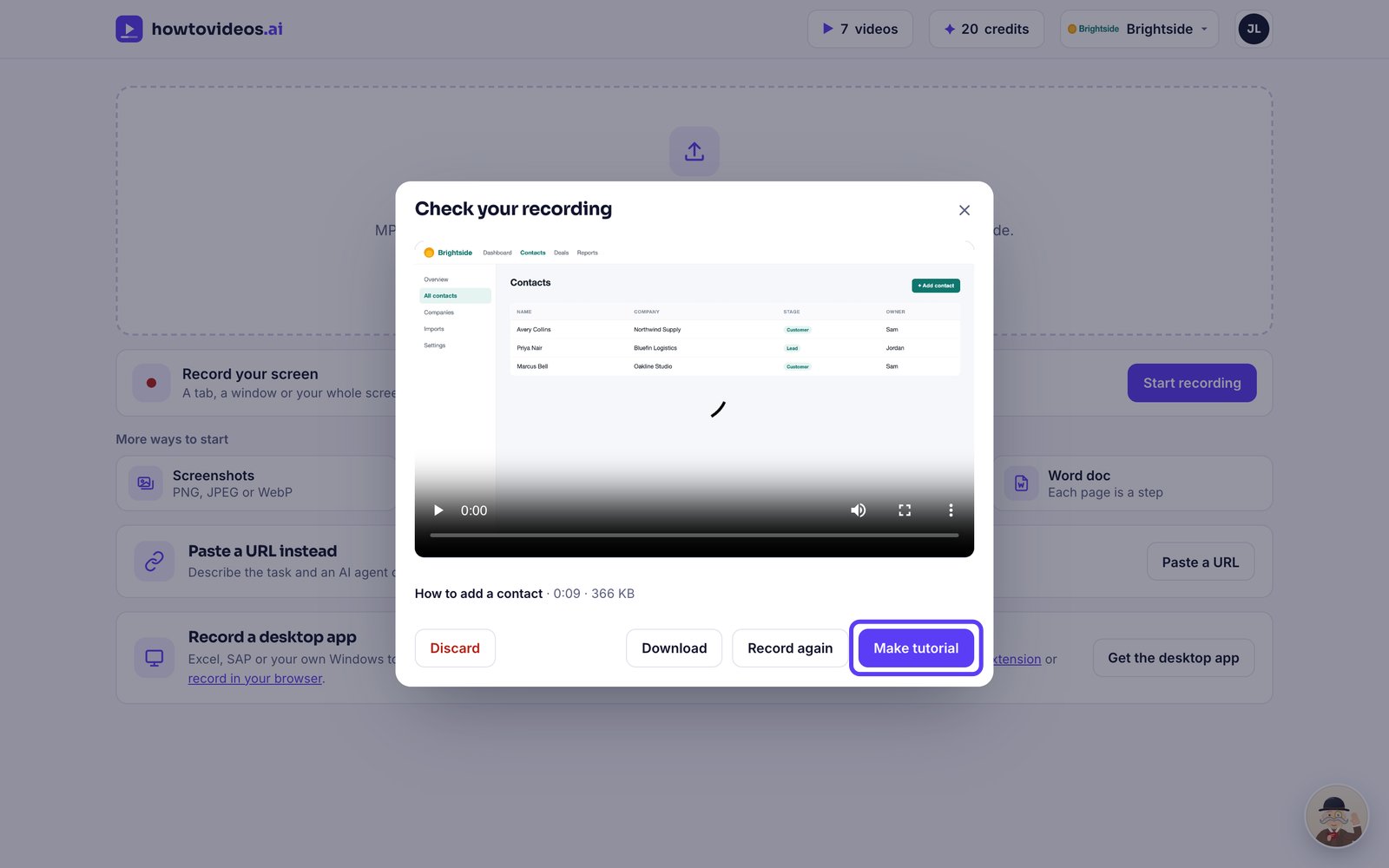
Choose the basics
A short guided setup opens first. Choose the video's shape, captions and cursor, or close it and set them later.
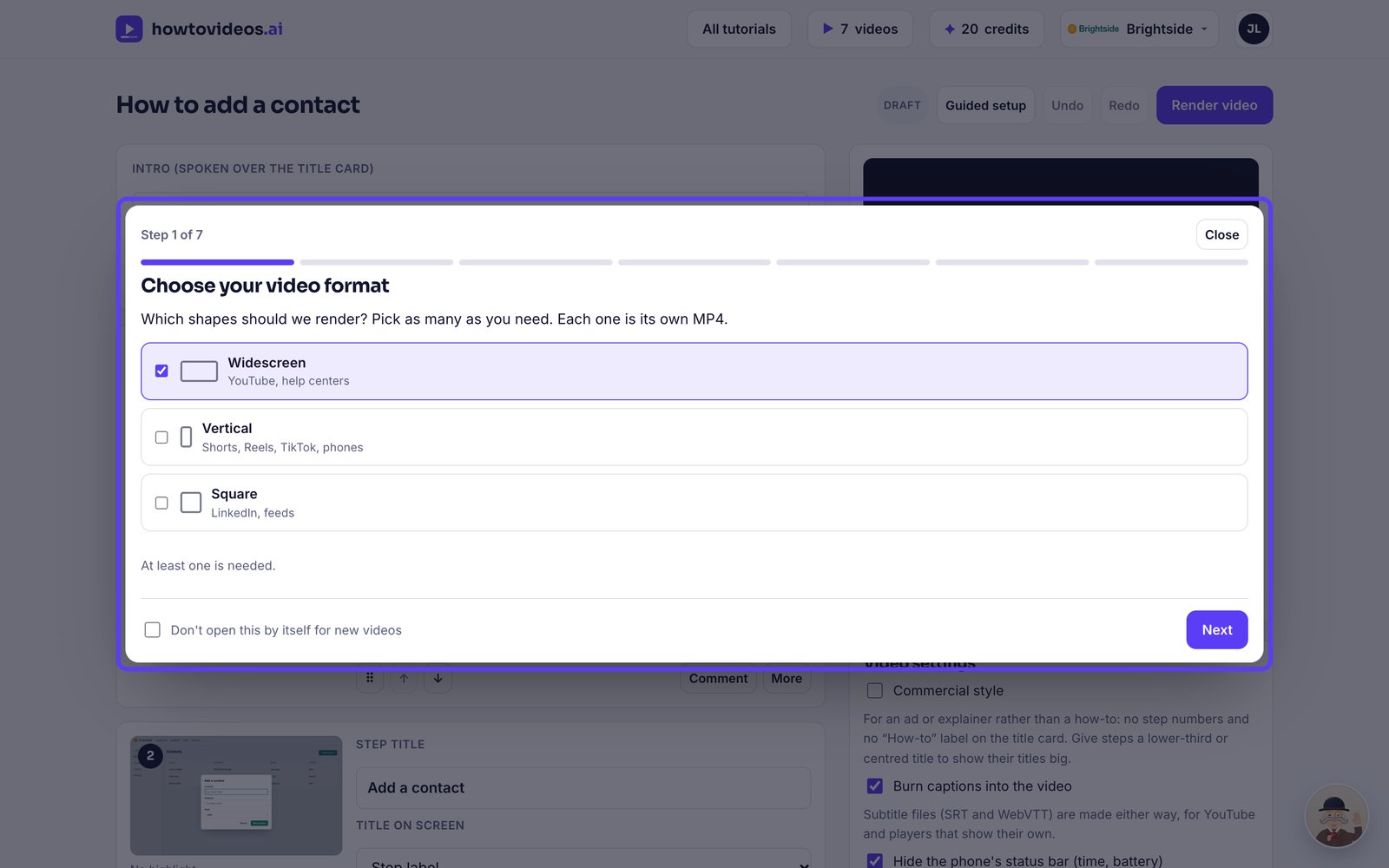
Check it and render
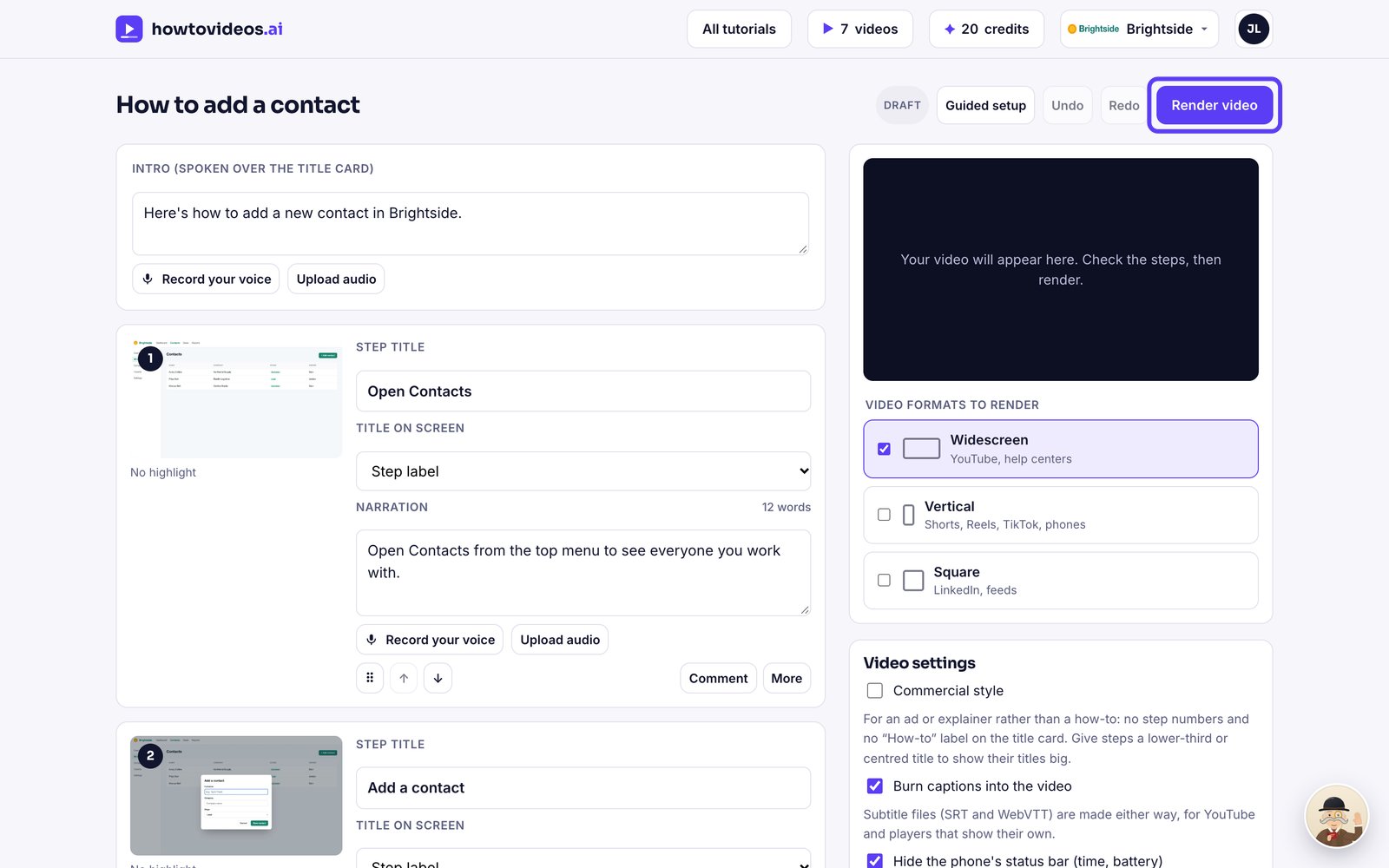
The editor opens with your steps and script. Check them, then choose Render video.