How to install the desktop recorder on Windows
Download the howtovideos.ai desktop recorder, run the installer and sign in.
Step by step
10 steps to install the desktop recorder on Windows.
Download it
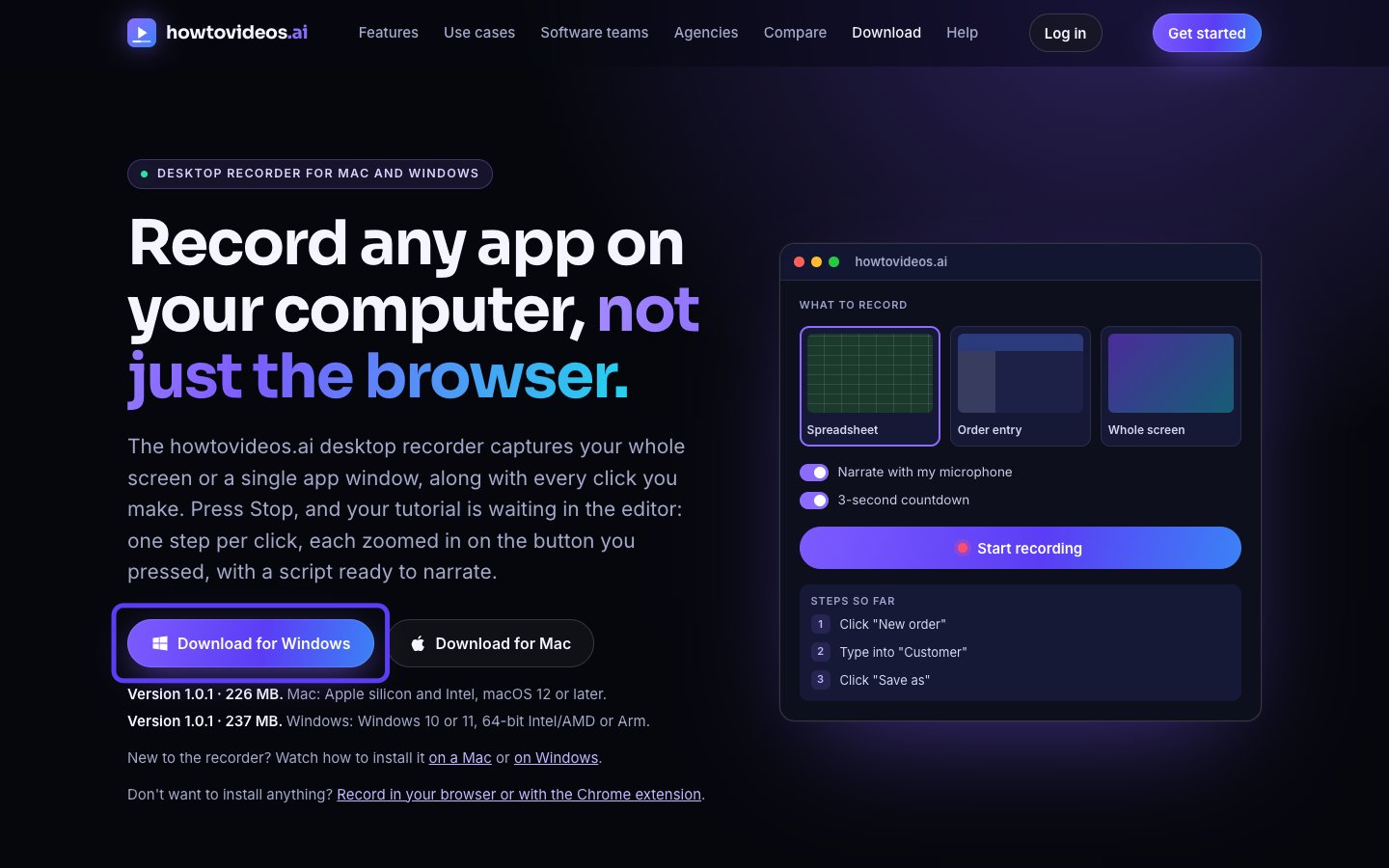
On our website, open the Download page and choose Download for Windows. The one installer works on Intel, AMD and Arm PCs.
Run the installer
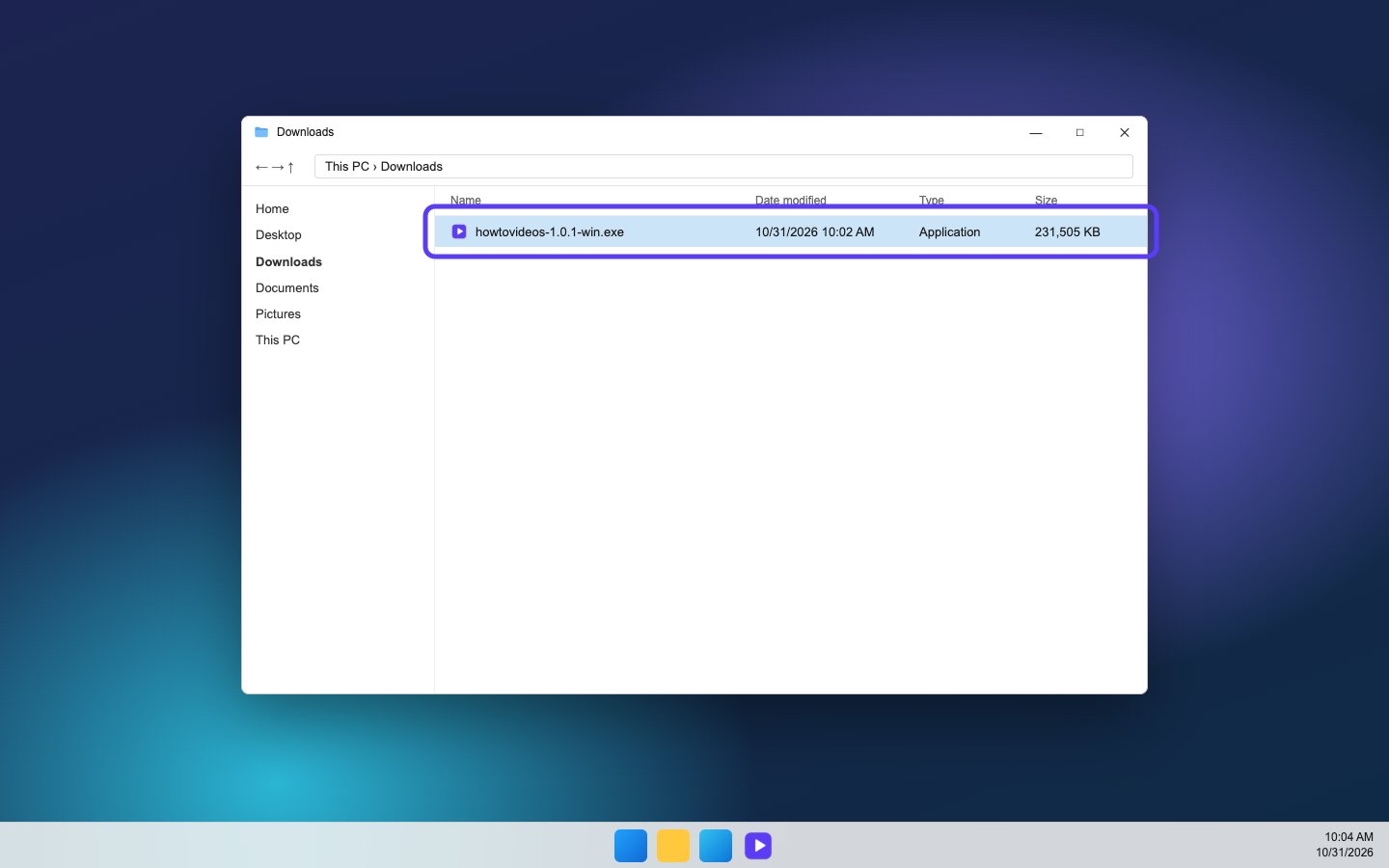
Open your Downloads folder and double-click the installer you just downloaded.
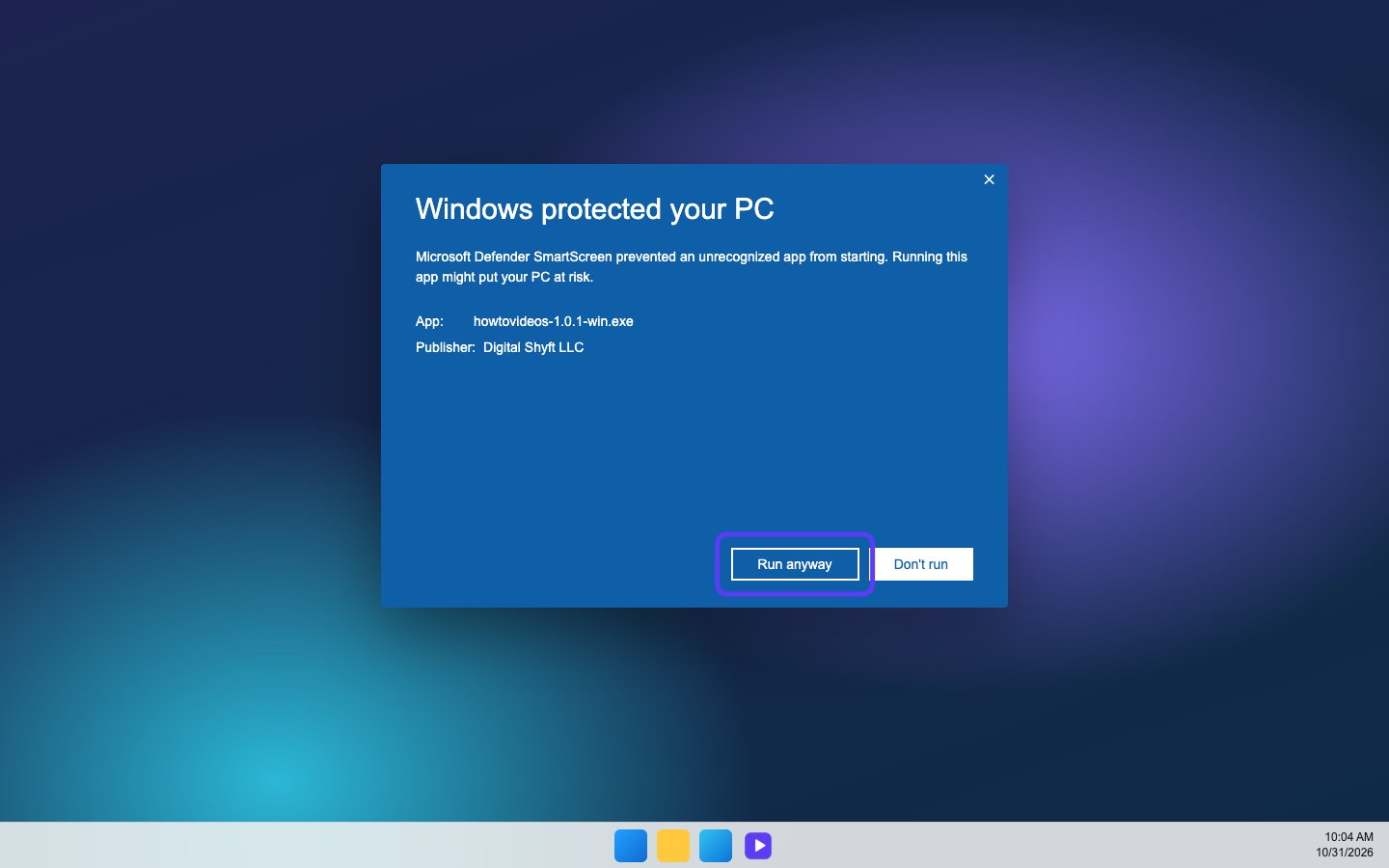
If Windows asks, run it anyway
If Windows shows Windows protected your PC, choose More info and check the publisher is Digital Shyft LLC. Then choose Run anyway. If it names anyone else, don't run it.
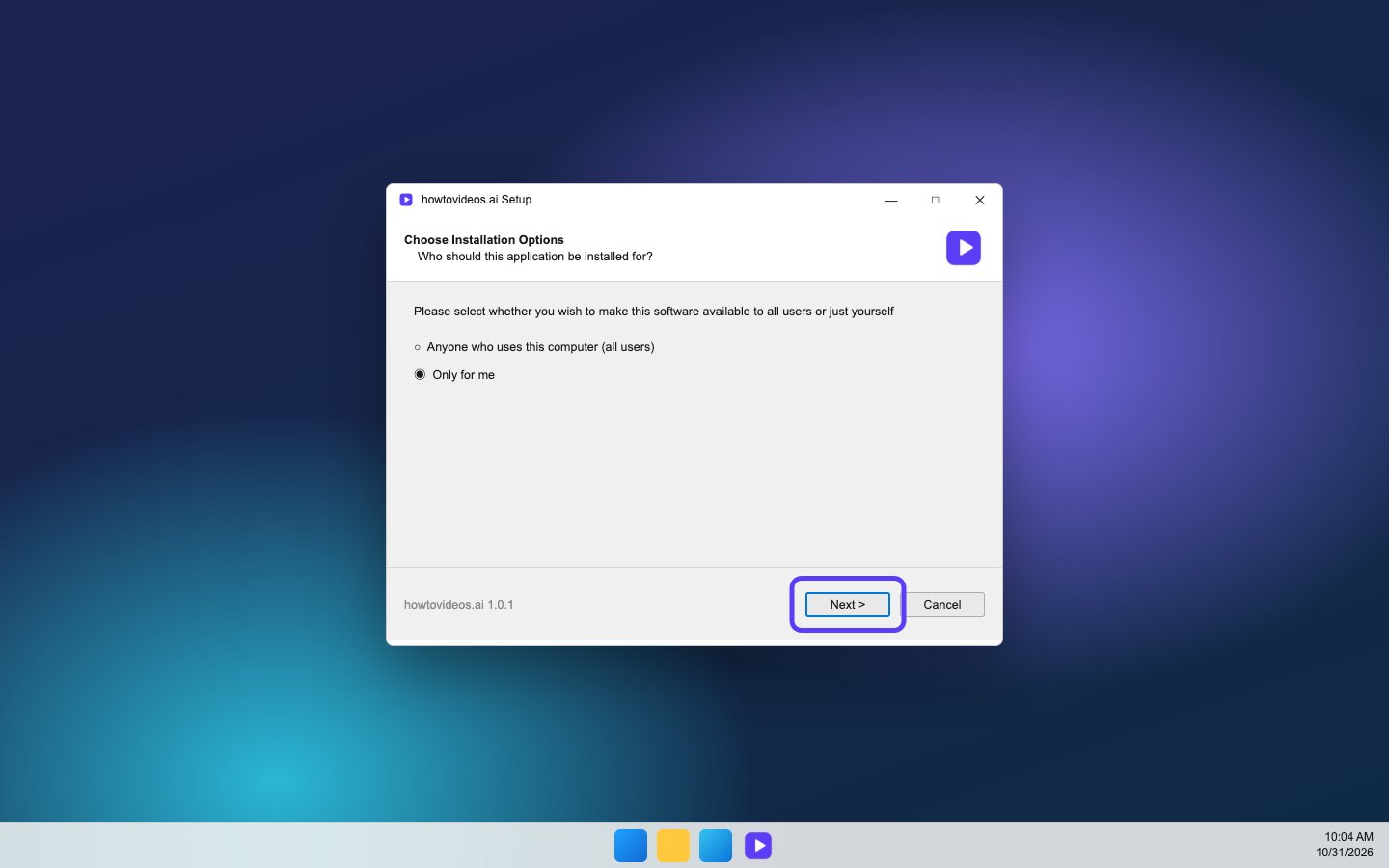
Install it for you
Leave Only for me selected, so it installs without an administrator, and choose Next.
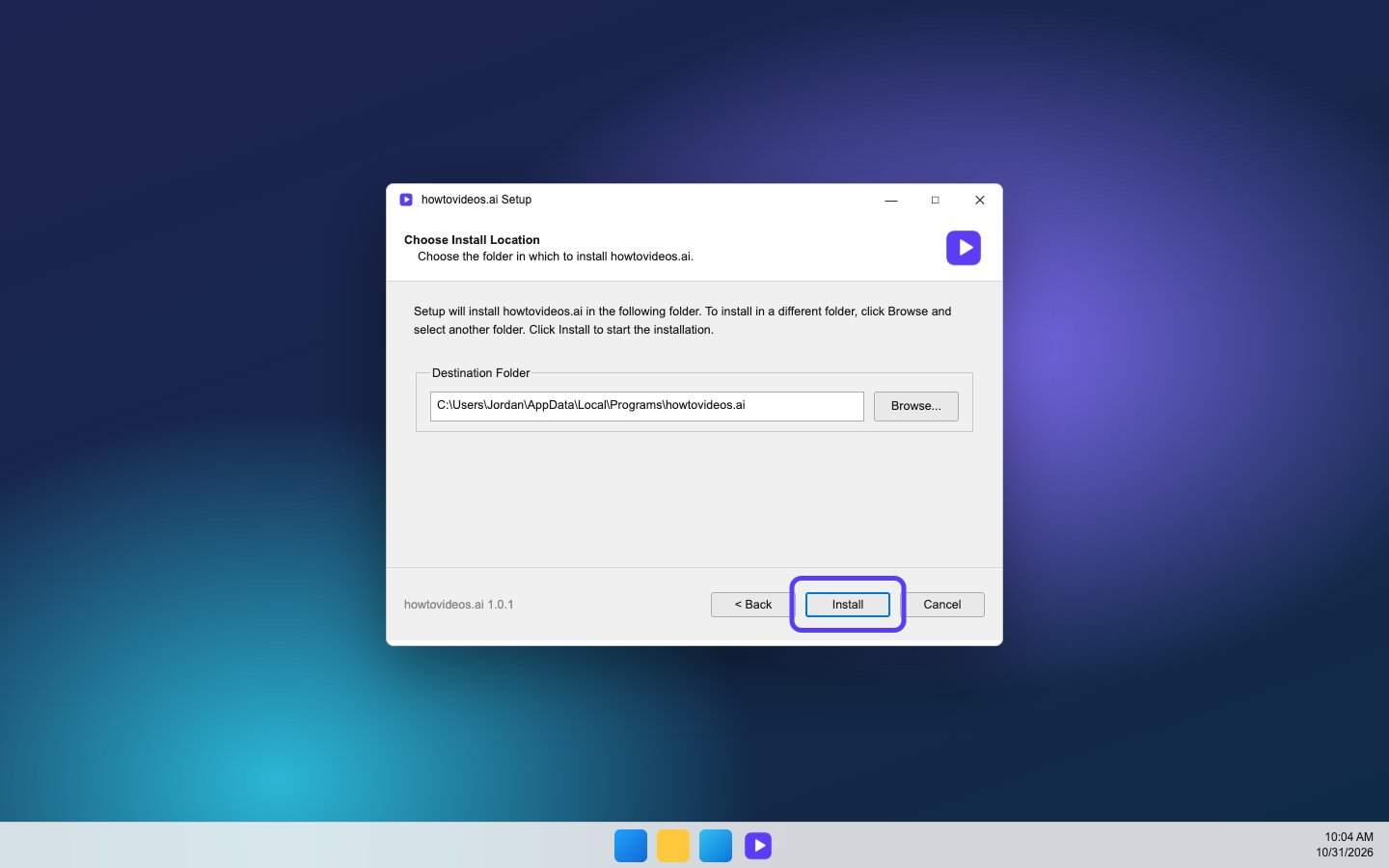
Choose Install
The suggested folder is fine. Choose Install, and give it a few seconds.
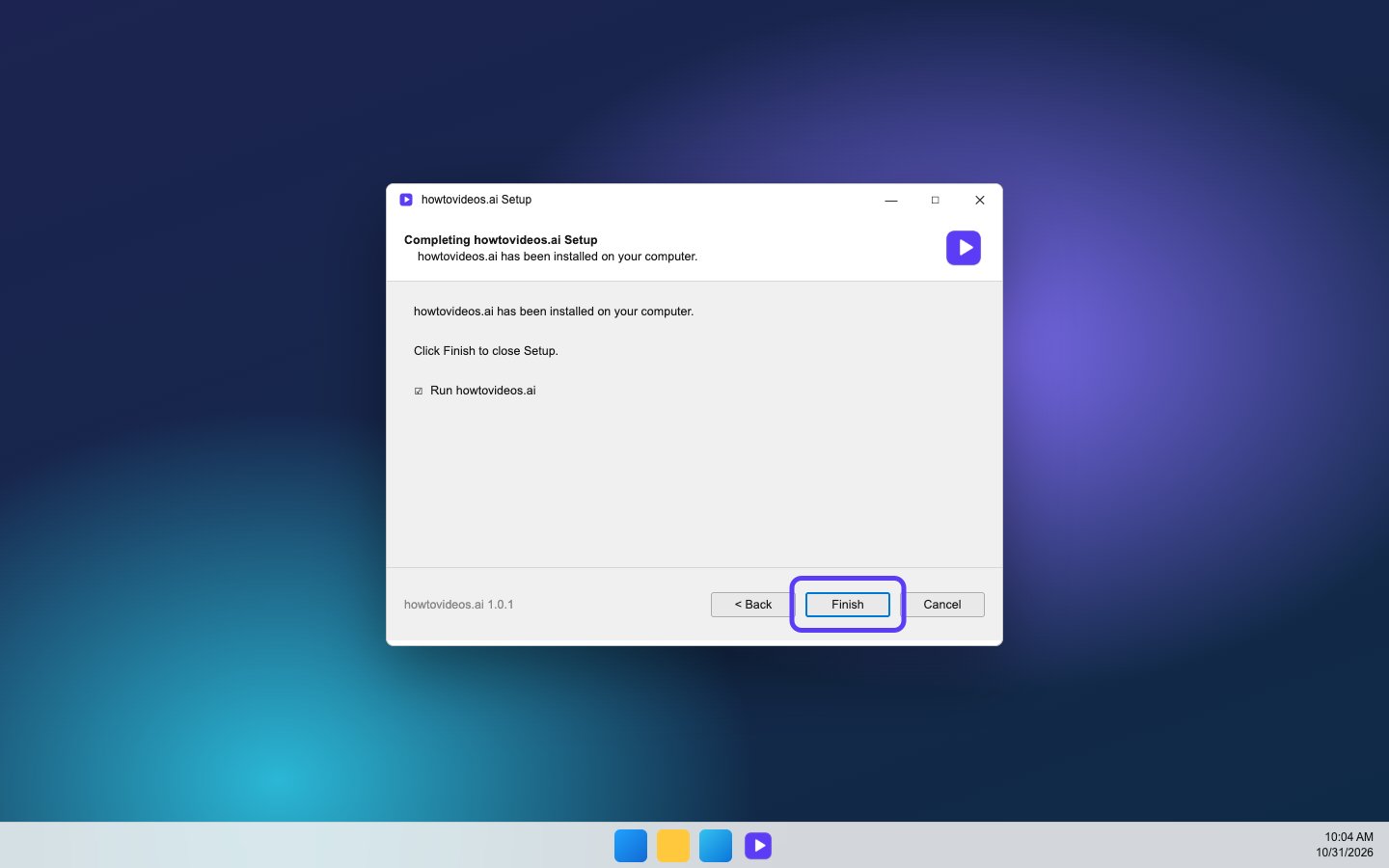
Finish and open it
Leave the box to run the app ticked and choose Finish. Next time, open it from the Start menu or the desktop shortcut.
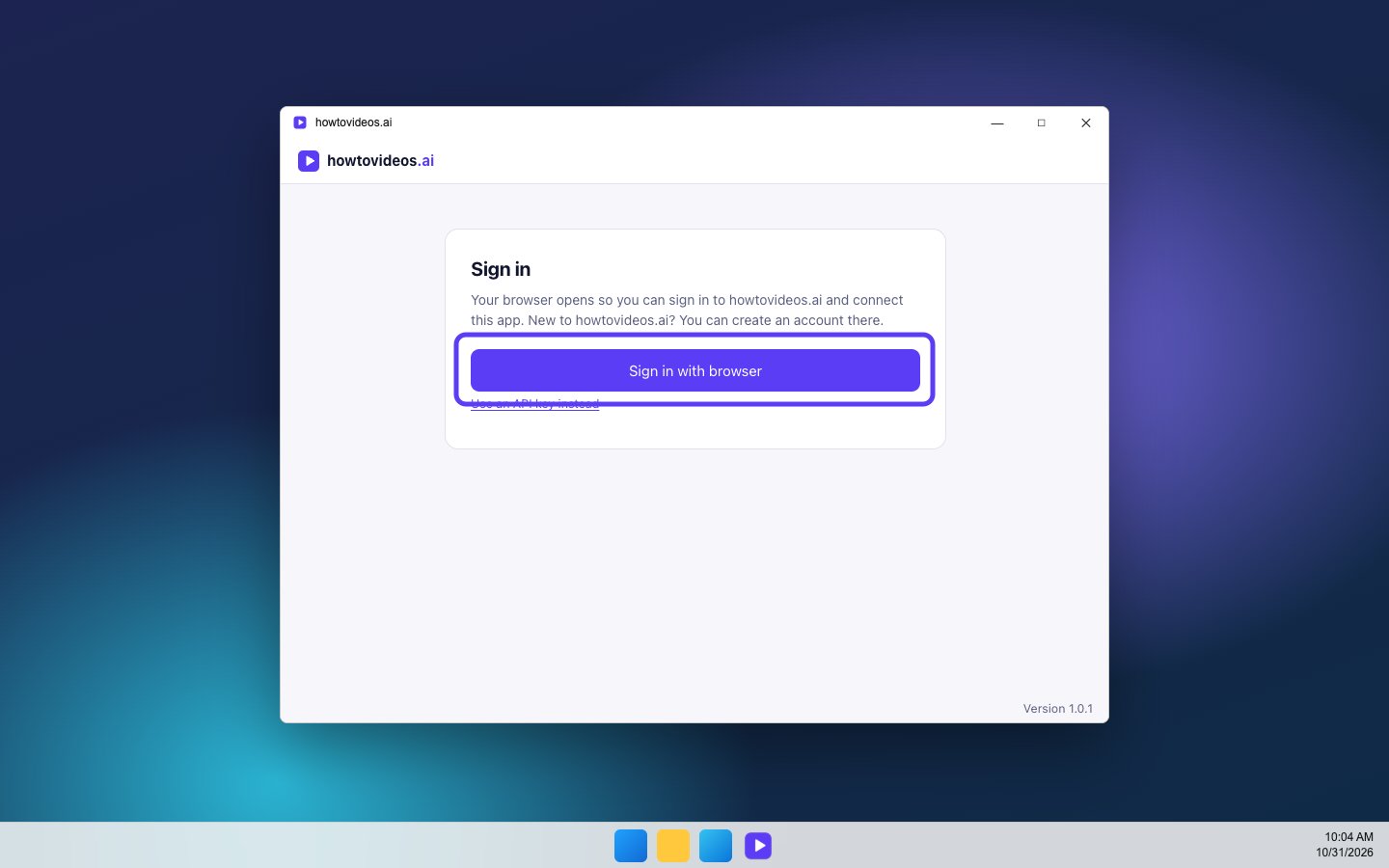
Sign in with browser
Choose Sign in with browser. Your browser opens so you can sign in to your account, or create one.
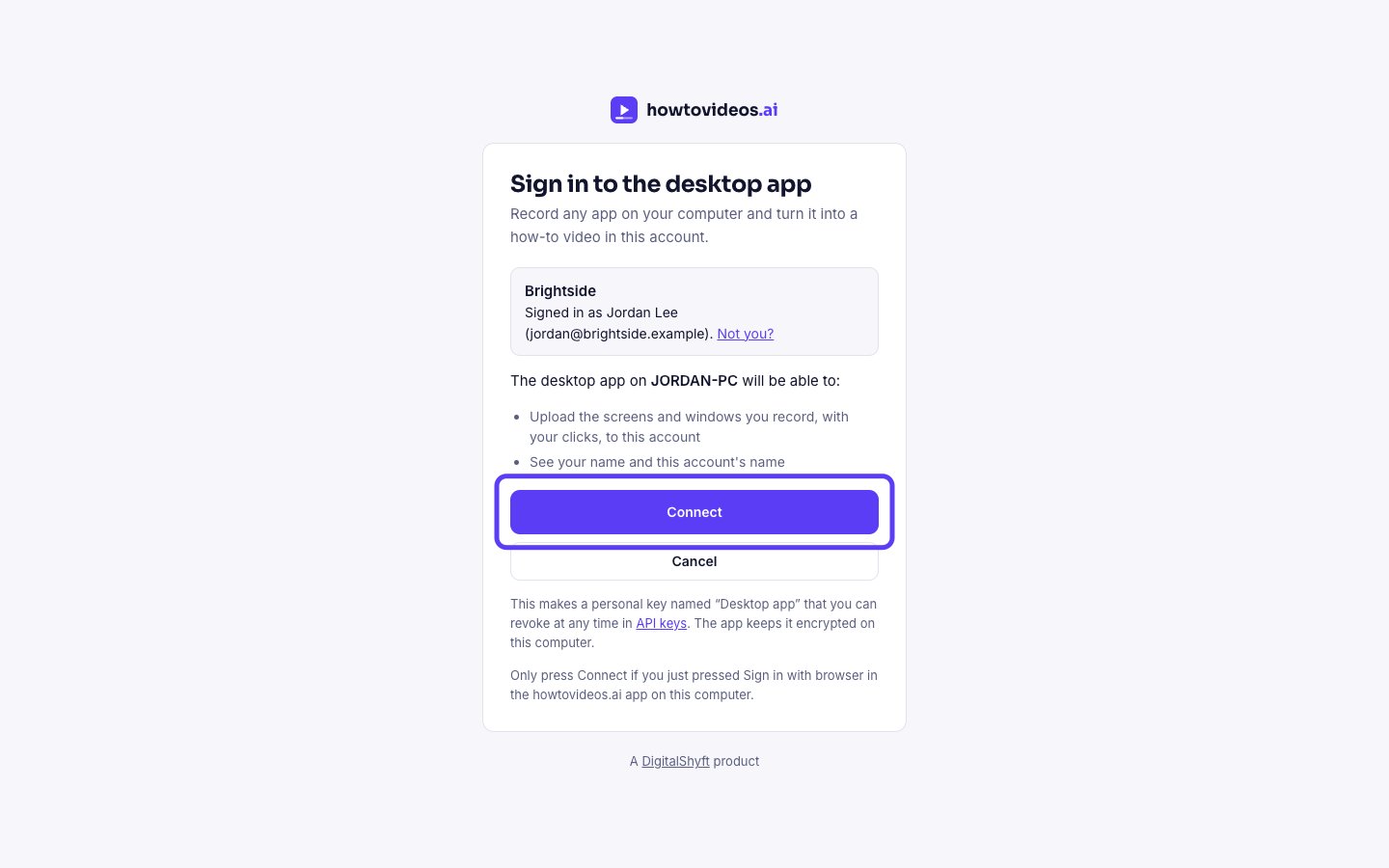
Choose Connect
Check it's the right account, then choose Connect. The app gets its own key, and you never have to copy one.
Go back to the app
Your browser says you're signed in. Close the tab and go back to the app. The key is stored encrypted on your PC.

Pick what to record
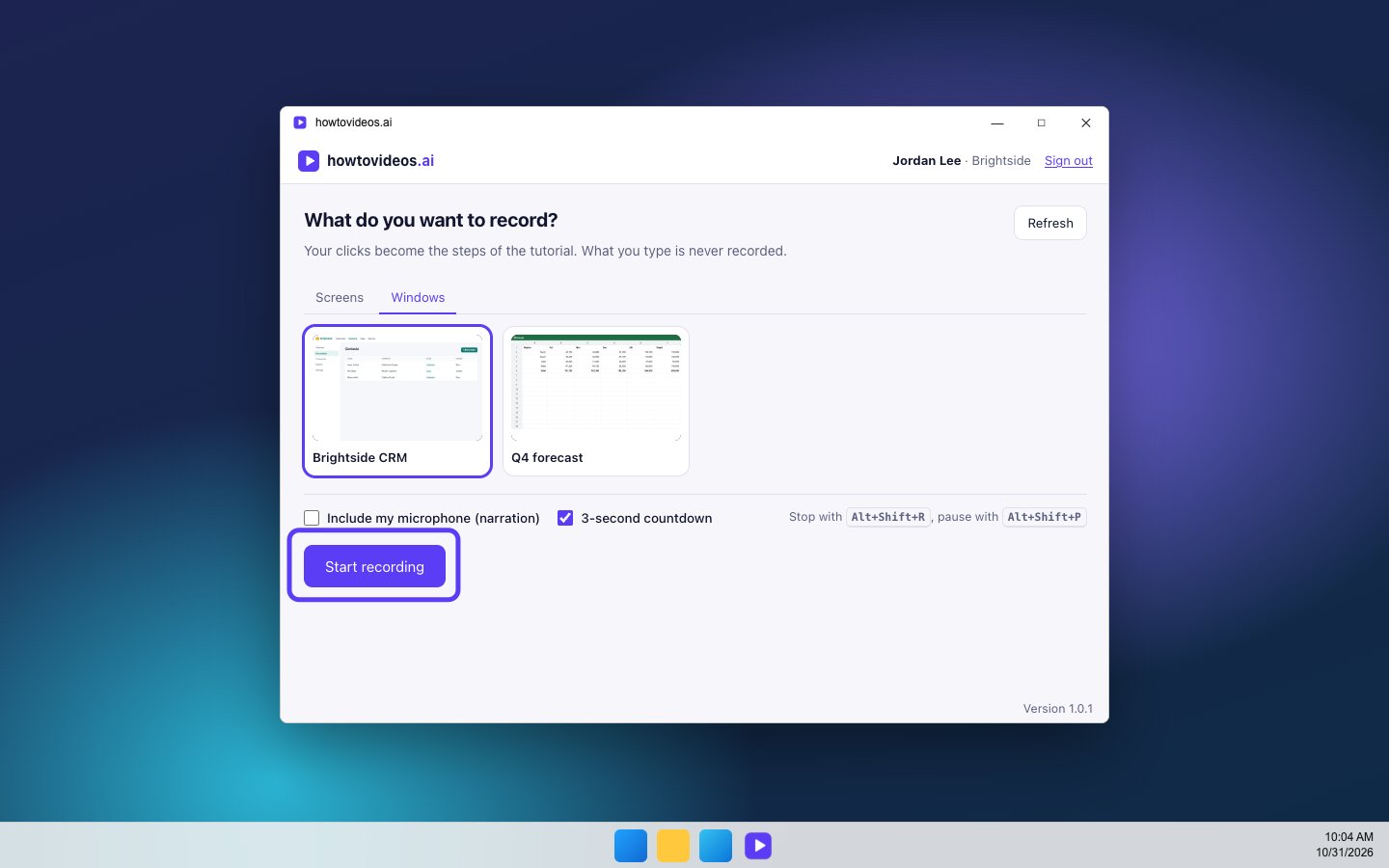
Windows doesn't need any extra permissions. Pick a screen, or an app's window, and choose Start recording. When you stop, your tutorial opens in the editor.